> For the complete documentation index, see [llms.txt](https://docs.telm.ai/telmai/llms.txt). Markdown versions of documentation pages are available by appending `.md` to page URLs; this page is available as [Markdown](https://docs.telm.ai/telmai/connect-to-data/data-connections/iceberg.md).
# Hive Metastore
Connect using Hive Metastore with HIVE or ICEBERG catalog type (GCS & S3)
Feature only supported for GCP & AWS deployments (GCS & S3 metastore)
## Creating a connection
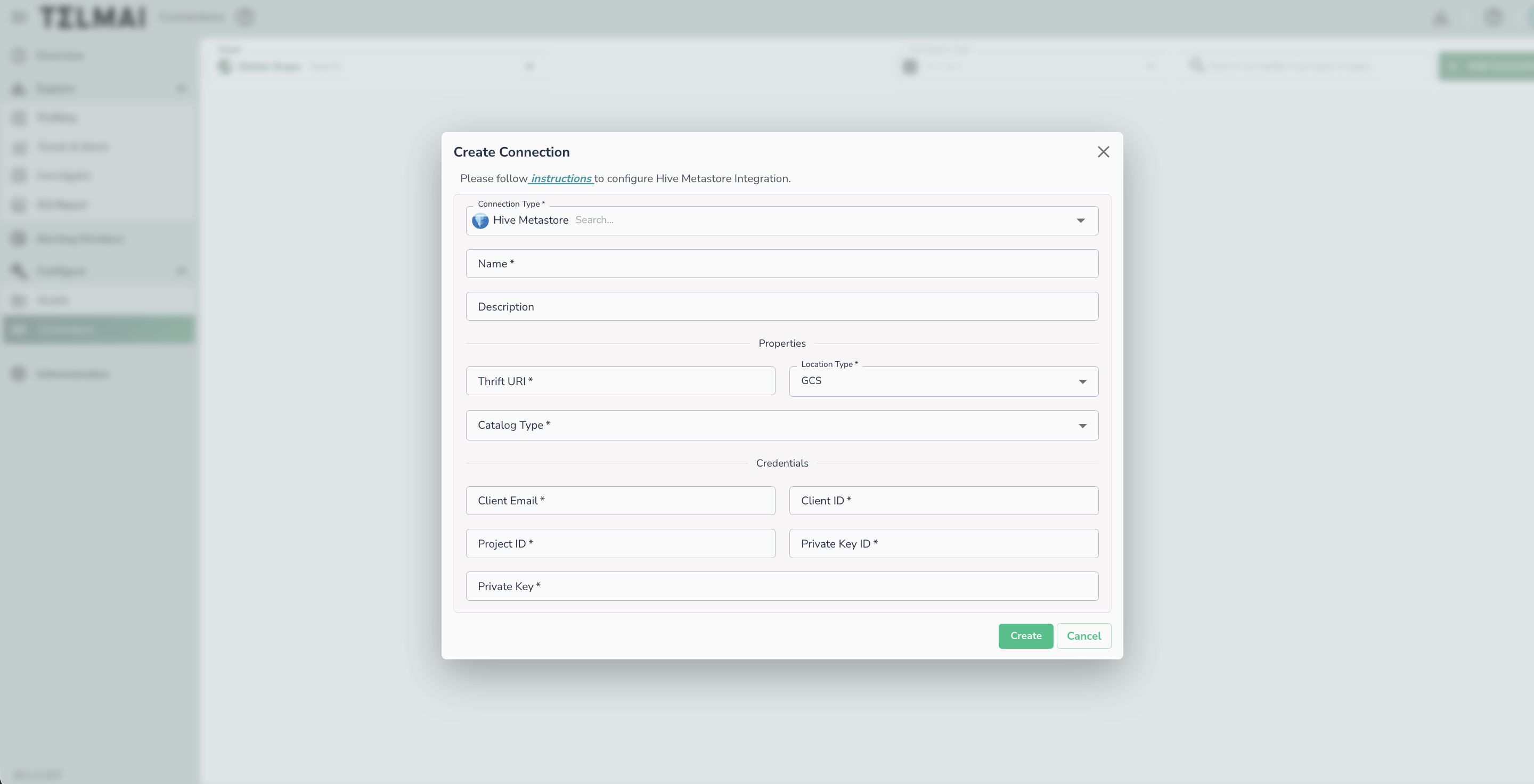
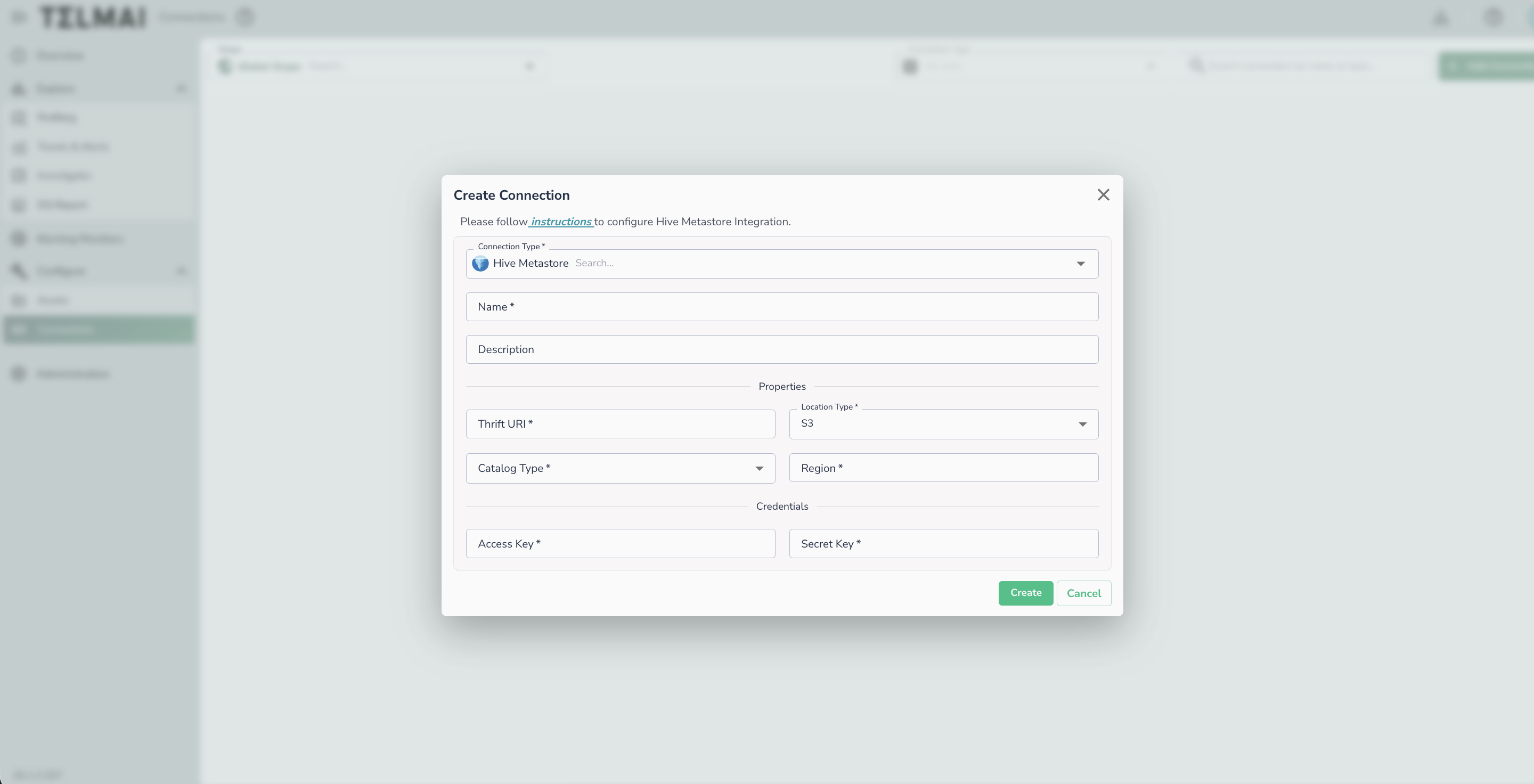
To set up a connection to Hive Metastore, provide the following:
* **Thrift URI**: The Thrift URI used to connect to the Hive Metastore using the Thrift protocol.
* **Location Type**: The type of storage where physical data files are present — **GCS** or **S3**.
* **Catalog Type**: Choose **HIVE** for a standard Hive catalog, or **ICEBERG** for an Iceberg catalog hosted in Hive Metastore.
### GCS credentials
GCS location type
| Field | Description |
| -------------- | ------------------------------ |
| Client Email | Service account email address |
| Client ID | Service account client ID |
| Project ID | GCP project ID |
| Private Key ID | Service account private key ID |
| Private Key | Service account private key |
*The specified GCS service account credentials should have read-access to the Hive Metastore warehouse. In the case of a private cloud deployment, write-access to the Telmai internal storage bucket must also be granted to this service account.*
### S3 credentials
S3 location type
| Field | Description |
| ---------- | ----------------------------------------- |
| Region | AWS region where the S3 bucket is located |
| Access Key | AWS access key ID |
| Secret Key | AWS secret access key |
## Connecting an asset
Once a connection is defined, you can start using it to create assets. To create assets, you will need:
* Database name
* The next step will show you available tables
{% hint style="warning" %}
Group scans are not supported for Hive Metastore connections.
{% endhint %}