> For the complete documentation index, see [llms.txt](https://docs.telm.ai/telmai/llms.txt). Markdown versions of documentation pages are available by appending `.md` to page URLs; this page is available as [Markdown](https://docs.telm.ai/telmai/authentication-and-access-control.md).
# Authentication and Access Control
Logging in to Telmai is a simple process. You can sign in using an email and password or through a Single Sign-On (SSO) provider if your organization has it configured.
## Sign in to Telmai
### General Login Steps
1. Go to the Login Page: Navigate to the Telmai login page.
2. Enter Credentials: Use your registered email address and password.
3. Click "Sign In": Click the sign-in button to access your Telmai account.
### Single Sign-On (SSO) Login Steps
Many organizations use SSO for a more secure and streamlined login experience. If your company uses an identity provider (IdP) like Okta, you'll use this method to log in.
1. Go to the Login Page: Navigate to the Telmai login page.
2. Enter Credentials: Use your registered email address.
3. If SSO is configured for your account, you will be navigated to the IDP option. If multiple SSOs are configured, you will need to select the desired one.
4. You will be redirected to your organization's identity provider login page.
5. Enter your Company Credentials: Use your standard company username and password to authenticate.
6. Redirect to Telmai: After successful authentication with your IdP, you'll be redirected back to the Telmai Account.
Please click [here](/telmai/authentication-and-access-control/sso-configuration.md) to learn more about setting up your SSO configuration.
### Sign in Issues
Potential issues you may face when signing in:
* Account locked out
* User not added to SSO group
* User not added to Telmai account
## Managing Users
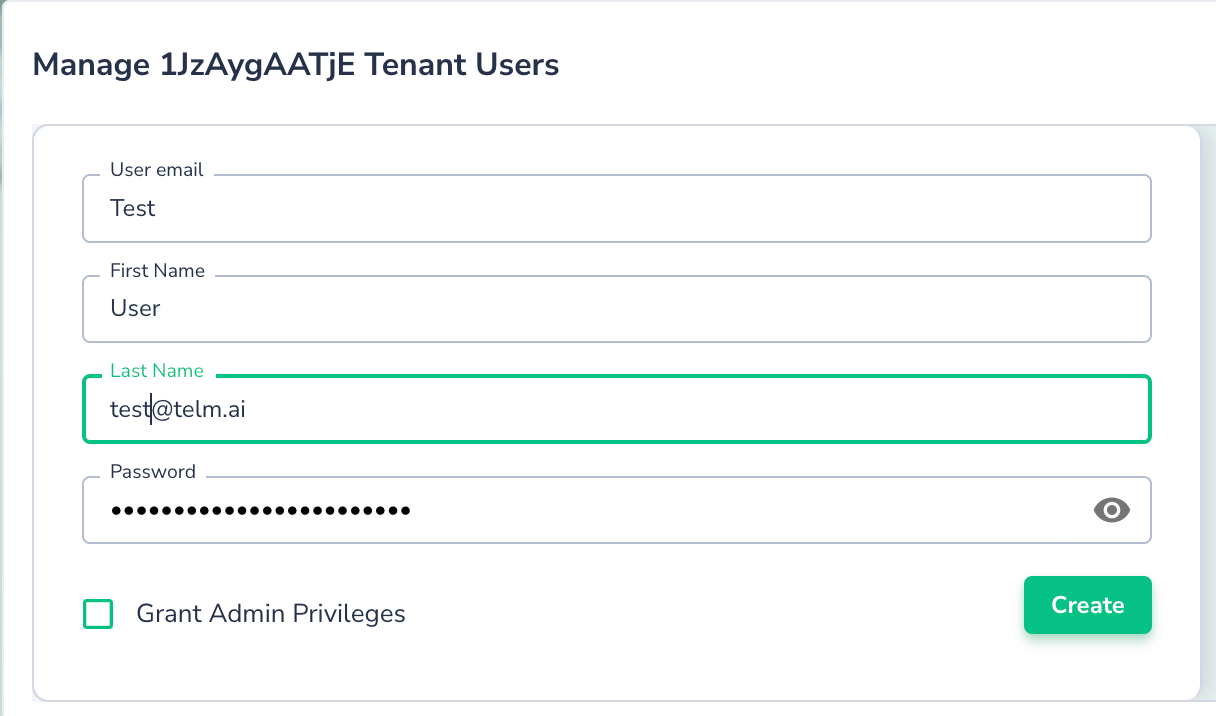
Telmai allows you to create, edit, and delete users via the Manage users UI menu:
### Role-based Access
Telmai supports project-scoped permissions. Tenant admins are able to modify these permissions accordingly:
| Role | Add/Modify Users | Add, Edit or Delete Source | Scan Source / Schedule Scans | View scan results |
| ------------ | ---------------- | -------------------------- | ---------------------------- | ----------------- |
| Tenant Admin | x | x | x | x |
| Editor | | x | x | x |
| Operator | | | x | x |
| Viewer | | | | x |
To modify user roles,
1. Click “**Manage Tenant Users**” under the user menu
2. Click on the user you would like to modify permissions for
3. “**Project Permissions**” table with different roles
4. Select appropriate roles
5. Click Save