> For the complete documentation index, see [llms.txt](https://docs.telm.ai/telmai/llms.txt). Markdown versions of documentation pages are available by appending `.md` to page URLs; this page is available as [Markdown](https://docs.telm.ai/telmai/monitoring-data/monitors-management.md).
# Monitors Management
## Accessing the Monitors Page
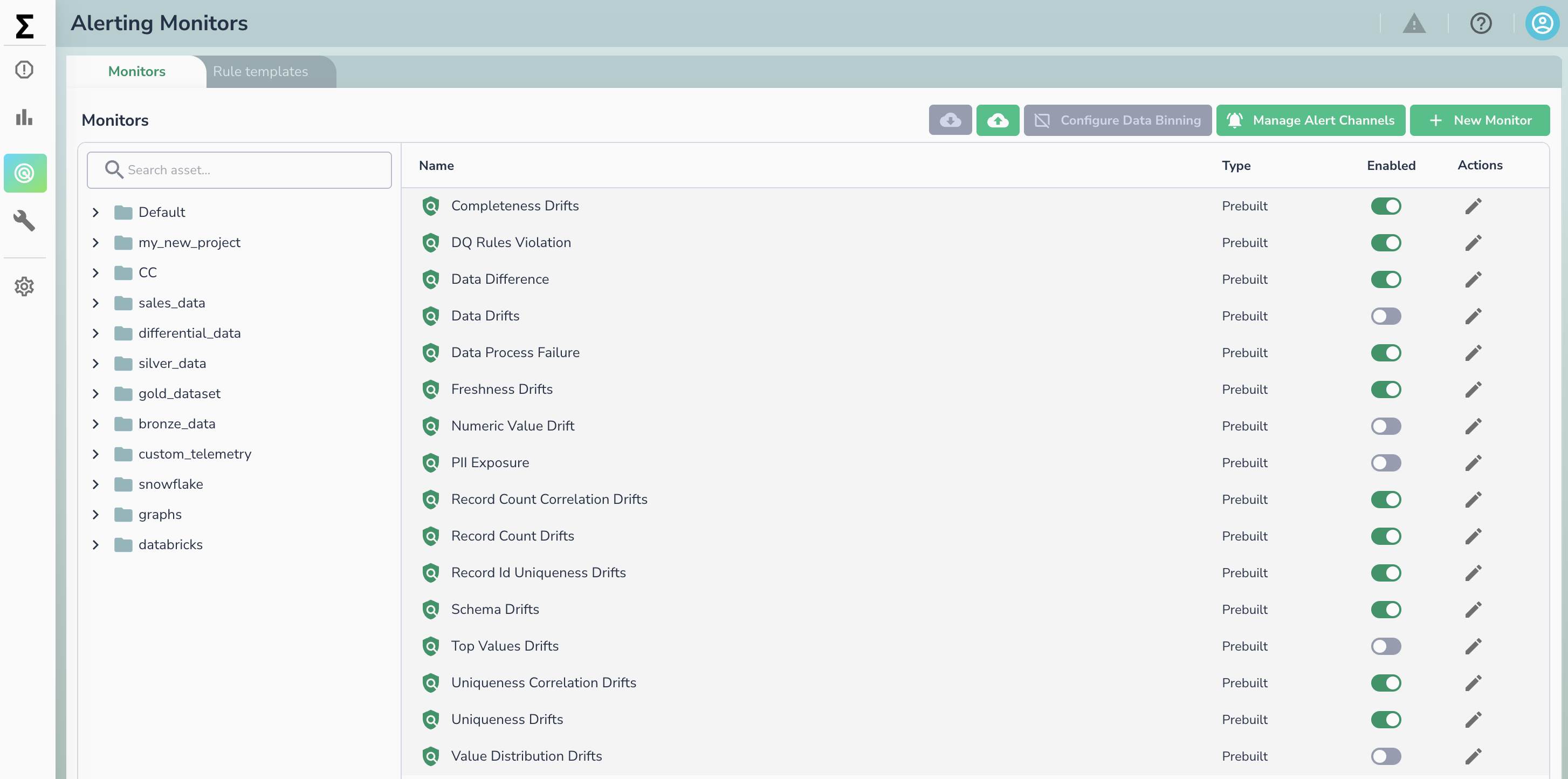
Navigate to **Alerting Monitors** from the main navigation menu to access all monitor management functionality.
The Monitors page provides:
* A comprehensive list of all monitors organized by asset
* Quick access to enable/disable monitors
* Edit and delete actions for each monitor
* Access to monitoring templates via the **Rule templates** tab
## Monitor Organization
#### Asset Grouping
Monitors are organized hierarchically by asset in the left sidebar:
* **Projects**: Collapsible groups containing related assets
* **Assets**: Individual data sources (tables, views, files) with their associated monitors
* **Monitor List**: All monitors for the selected asset displayed in the main panel
**Navigation tips:**
* Click the arrow (▸) to expand/collapse asset groups
* Use the search bar to quickly find specific assets
* Select an asset to view all its monitors
#### Monitor List View
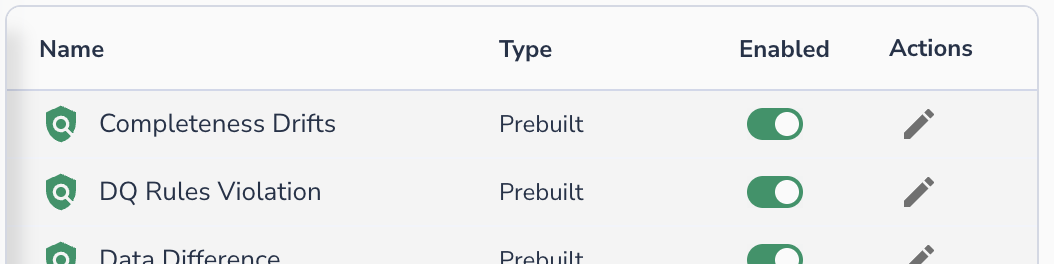
The main panel displays all monitors for the selected asset with the following information:
| Column | Description |
| ----------- | -------------------------------------------------------- |
| **Name** | Monitor name with type indicator (NEW, built-in, custom) |
| **Type** | Monitor type |
| **Enabled** | Toggle switch to enable/disable the monitor |
| **Actions** | Edit (✏️) and Delete (🗑️) buttons |
## Monitors Actions
The Monitors page provides several top-level actions:
### Configure Data Binning
Set up data binning rules to control how Telmai bins your data. [Learn more about data binning](/telmai/remediation/data-binning.md).\

### Manage Alert Channels
Configure notification destinations including Slack, email, webhooks, and other integrations to ensure alerts reach the right teams. [Learn more about managing notifications](/telmai/monitoring-data/monitors-management/configuring-notifications.md).
### + New Monitor
Click **+ New Monitor** to build custom monitors tailored to your specific data quality requirements. [Learn more about creating monitors](/telmai/monitoring-data/monitors-management/creating-a-monitor.md).
## Related Documentation
* [Creating a Monitor](/telmai/monitoring-data/monitors-management/creating-a-monitor.md)
* [Monitor Recommendations](/telmai/monitoring-data/monitors-management/monitor-recommendations.md)
* [Managing Existing Monitors](/telmai/monitoring-data/monitors-management/managing-existing-monitors.md)
* [Configuring Data-Binning](/telmai/monitoring-data/monitors-management/configuring-data-binning.md)
* [Configuring Notification](/telmai/monitoring-data/monitors-management/configuring-notifications.md)