For the complete documentation index, see llms.txt. This page is also available as Markdown.

Zeenea

Telmai integrates with Zeenea to connect data quality monitoring with your Zeenea data catalog. Zeenea metadata enriches Telmai's monitoring configuration and AI-powered recommendations, helping your team discover, prioritize, and monitor critical datasets faster.

Overview

Telmai pulls the following metadata from Zeenea:

Metadata type
How Telmai uses it

Business glossary terms

Informs AI-generated monitoring rules with business definitions

Lineage data

Powers asset prioritization and lineage visualization

Sensitivity classifications

Surfaces sensitivity context alongside monitors

Stewardship information

Identifies the data steward responsible for each asset

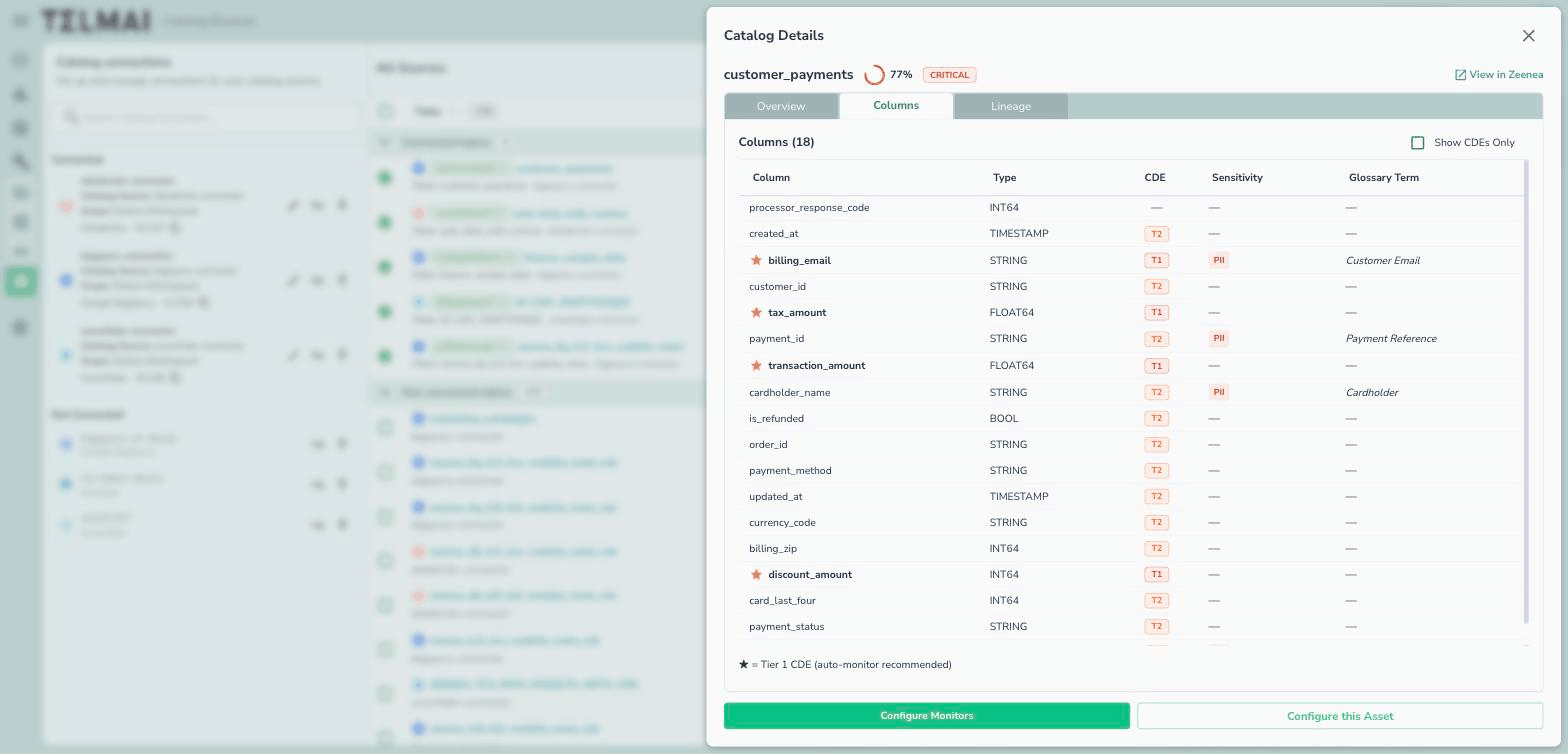
Catalog Details Columns tab showing CDE tiers, sensitivity classifications, and glossary terms per column
Column-level metadata from Zeenea: CDE tiers, sensitivity classifications, and glossary terms.
The Zeenea catalog integration is supported for the following Telmai data connection types: BigQuery, Databricks, Snowflake, and OneLake.


Step 1: Create an API Key in Zeenea

Telmai authenticates to Zeenea with an API key. To create one:

  1. In your Zeenea (Actian Data Intelligence) instance, go to Administration > API Keys.

  2. Create a new API key and give it a descriptive name (e.g., telmai-integration).

  3. Select the scanner permission for the key.

  4. Save the key. Zeenea displays the secret once, inside a configuration snippet:


Step 2: Connect to Zeenea

In Telmai, go to Administration and select Catalog from the left menu.

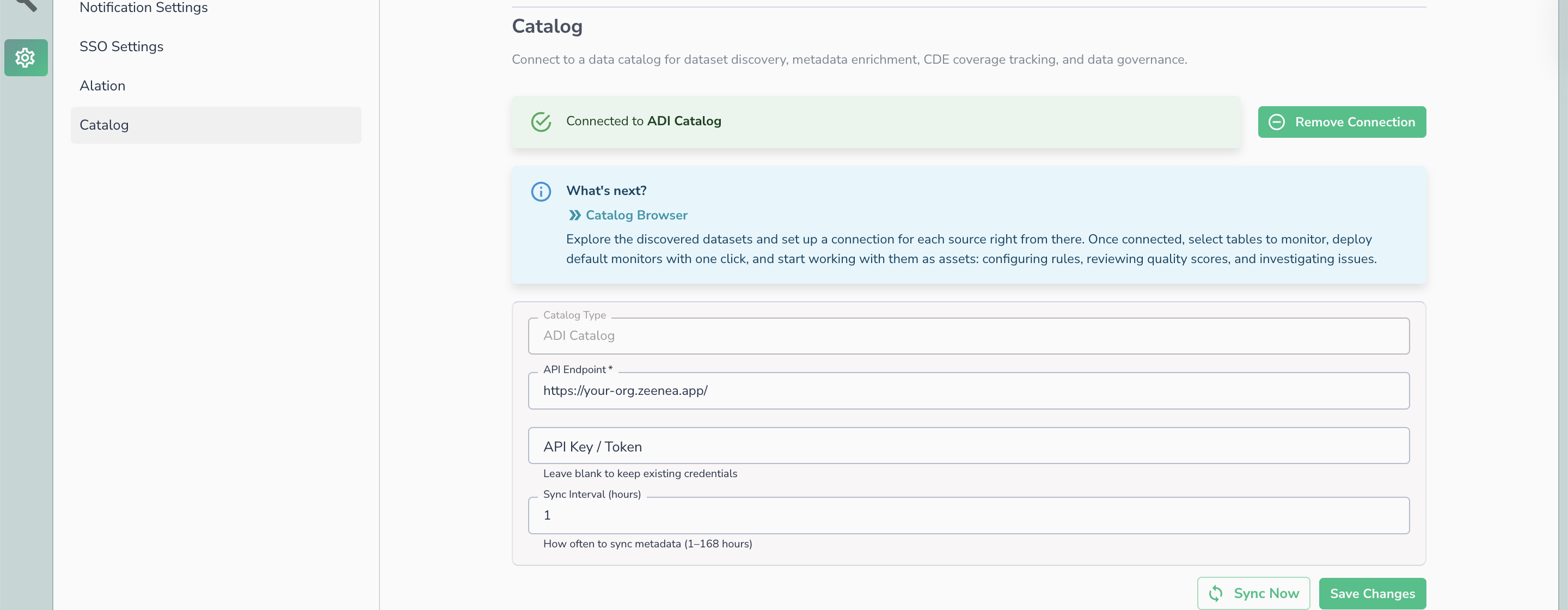
Administration > Catalog connection form
The Catalog connection form in Administration, showing Catalog Type, API Endpoint, API Key/Token, and Sync Interval.
Enter the following details:

Field
Description

Catalog Type

ADI Catalog (preset for Zeenea)

API Endpoint

Your Actian Data Intelligence instance URL (e.g., https://your-org.zeenea.app/)

API Key / Token

The API key secret created in Step 1 (only the token value, not the full api-key { ... } snippet). Leave blank when updating other fields to keep existing credentials.

Sync Interval (hours)

How often Telmai syncs metadata from Zeenea. Accepts values between 1 and 168 hours.

Save the connection. Once connected, Telmai displays Connected to ADI Catalog and two additional actions become available:

  • Sync Now — triggers an immediate metadata sync

  • Remove Connection — disconnects Telmai from Zeenea

After connecting, go to Catalog Browser to explore discovered datasets and link them to your Telmai data connections.


Step 3: Catalog Browser

Catalog Browser is available in the sidebar under Configure. It is the central place for browsing catalog-discovered datasets and managing which tables are connected for monitoring in Telmai.

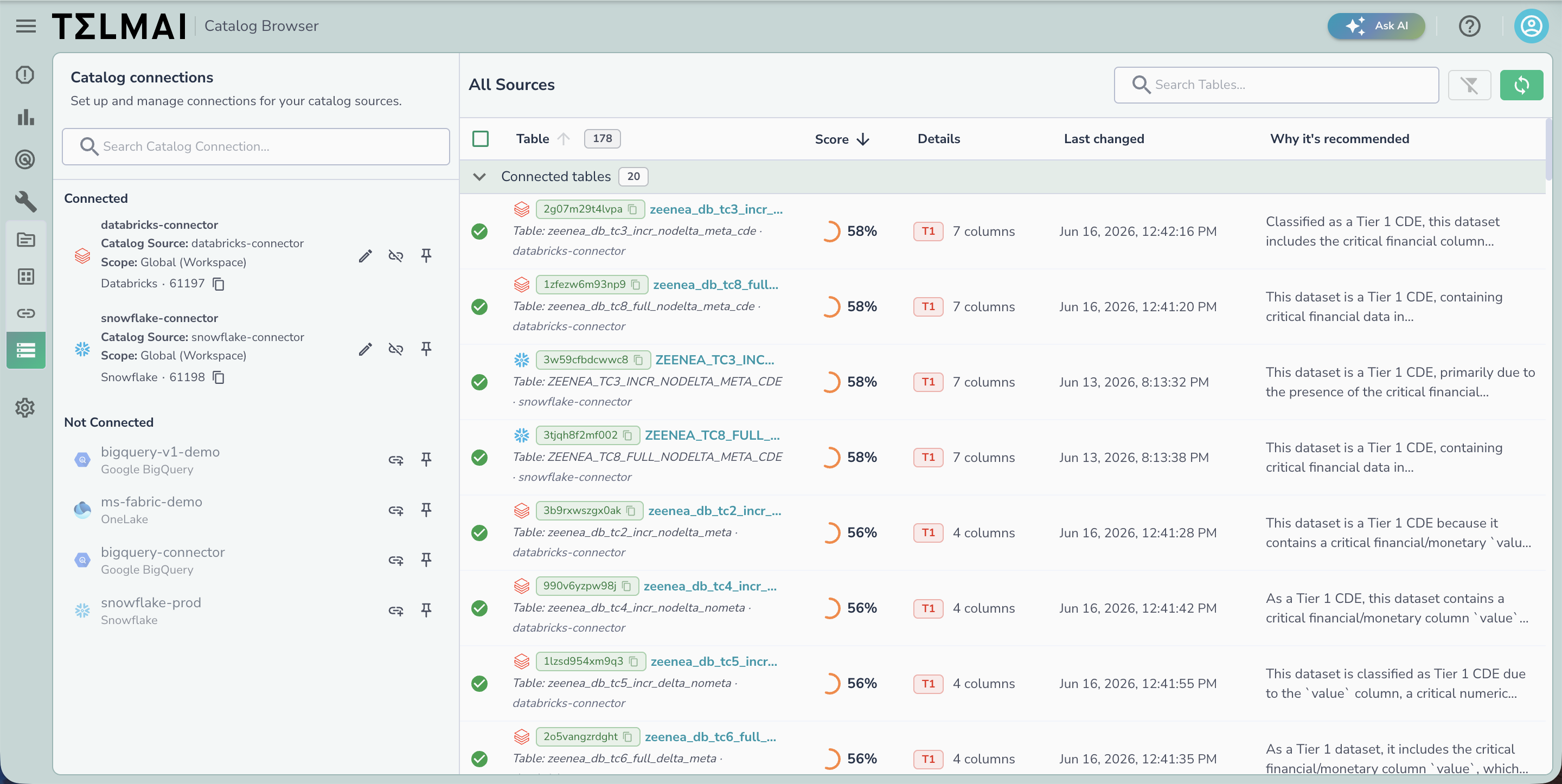
Catalog Browser
The Catalog Browser, with catalog connections on the left and discovered sources on the right.
Catalog Connections

The left panel lists your Telmai data connections and their catalog link status:

  • Connected — the Telmai connection is linked to a catalog source. Telmai maps catalog metadata to assets from this connection.

  • Not Connected — the Telmai connection has not yet been linked to a catalog source.

Use the link icon next to each connection to associate it with the corresponding catalog source.

All Sources

The right panel shows all tables discovered from the catalog. Tables are grouped into two sections:

  • Connected tables — already linked to Telmai assets

  • Non connected tables — discovered from the catalog but not yet monitored in Telmai

Each table shows the following columns:

Column
Description

Score

Current data quality score for the table

Details

Number of columns

Last changed

When the table was last updated in the catalog

Why it's recommended

AI-generated explanation of why Telmai recommends monitoring this table


Intelligent Recommendations

Telmai uses catalog metadata to prioritize which tables most need monitoring. The Why it's recommended column in the Catalog Browser surfaces this reasoning for each table, drawing on:

  • Tier classification (e.g., Tier 1 critical data elements)

  • Presence of sensitive or PII data

  • Financial or business-critical context from the catalog

  • Stewardship completeness

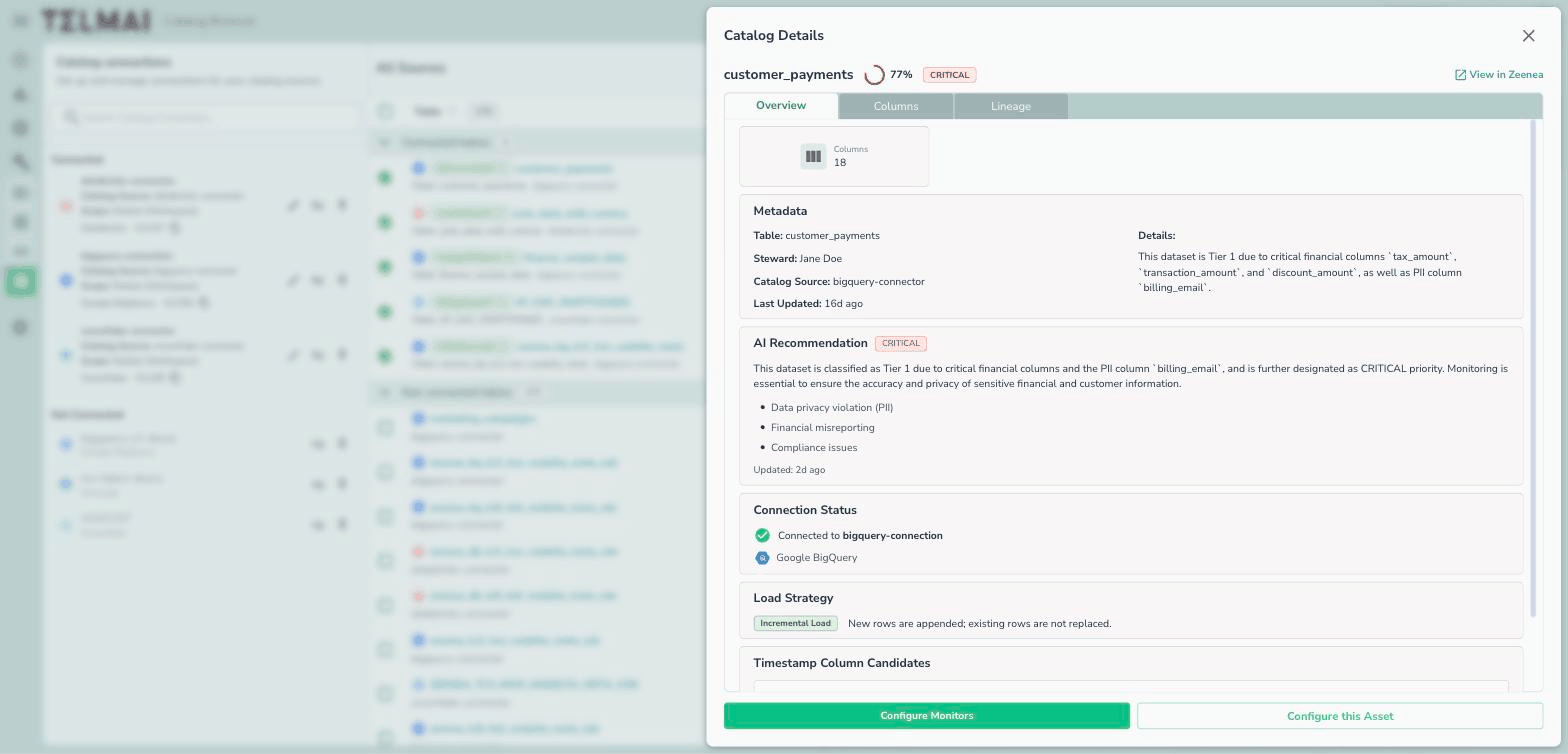
Select any table in the Catalog Browser to open its Catalog Details, which shows the dataset's catalog metadata, the full AI recommendation with its reasoning and priority, connection status, and suggested timestamp columns.

Catalog Details Overview tab showing metadata, AI recommendation with CRITICAL priority, connection status, and load strategy
The Catalog Details view, with the AI recommendation and its reasoning for a Tier 1 dataset.

Metadata syncs on the interval configured in Administration > Catalog. Use Sync Now to trigger an immediate sync at any time.


Business-Aware Rule Generation

When suggesting monitoring rules, Telmai uses the business definitions from the Zeenea glossary rather than relying on technical column names alone, making suggestions easier to evaluate and accept.


Lineage Visualization

Telmai displays upstream and downstream data dependencies sourced from Zeenea lineage data, giving you context for how quality issues propagate through your data pipelines.

Last updated